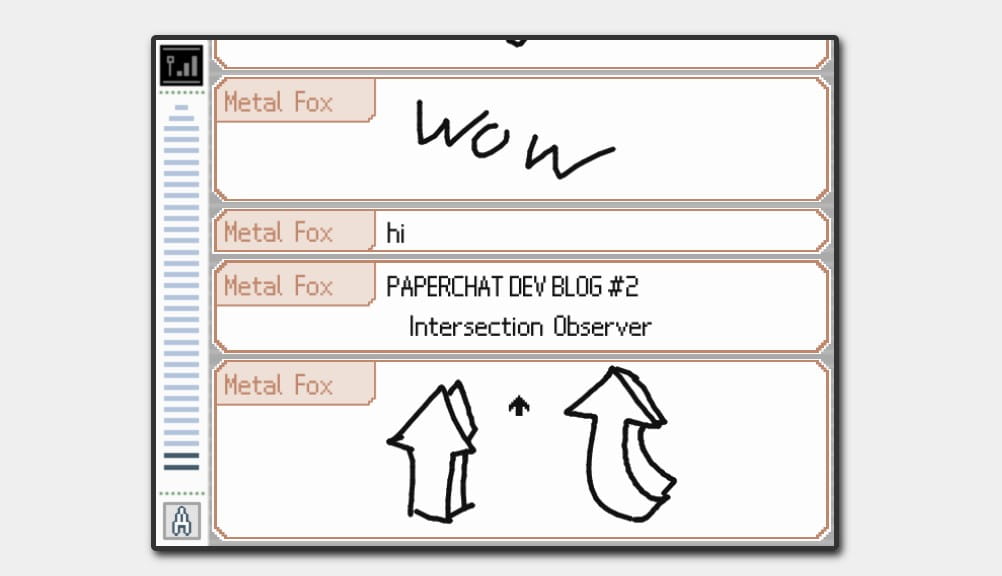
Paperchat Dev Blog #2 - Using IntersectionObserver to replicate Pictochat's custom scroll behavior in React
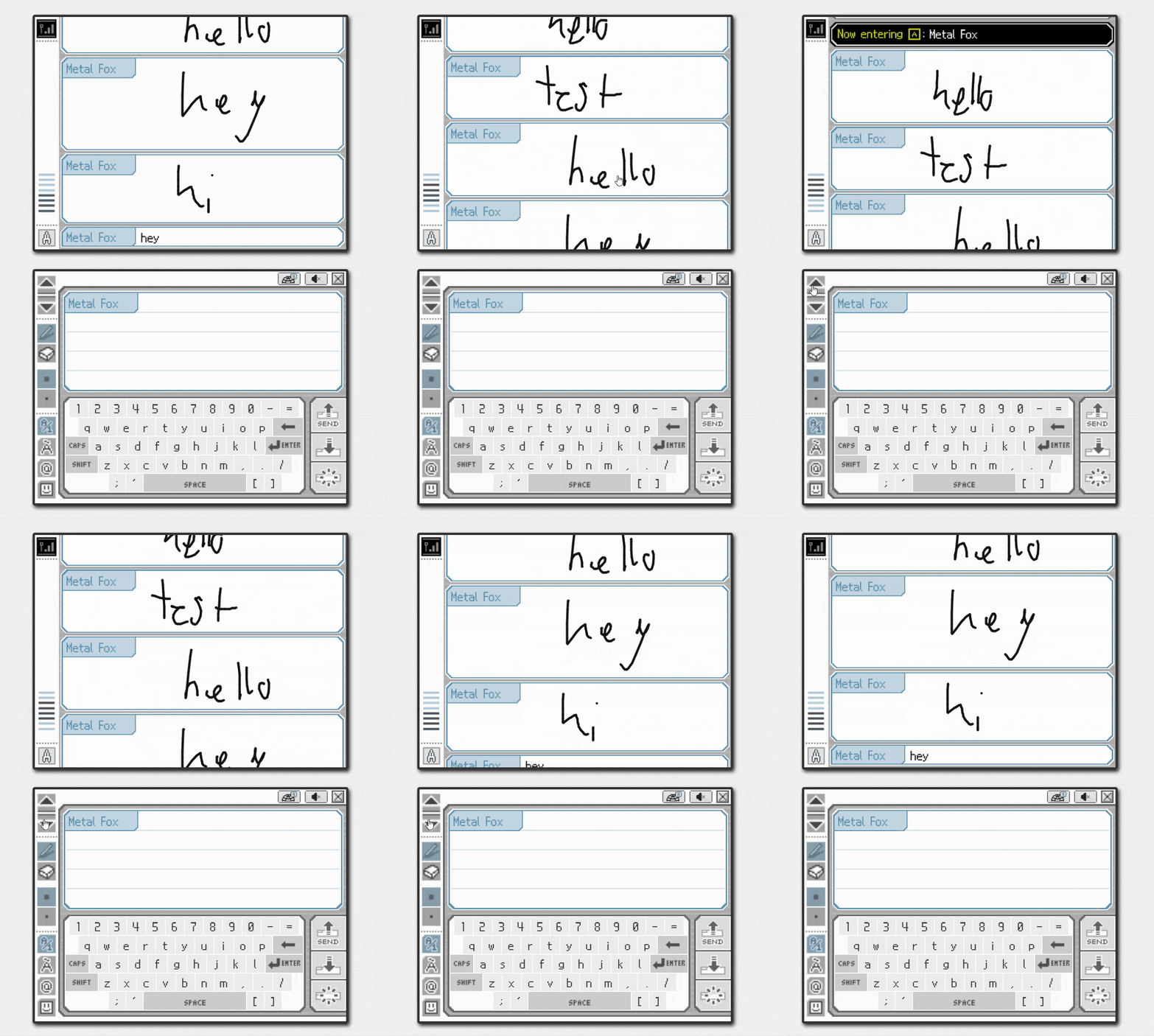
In every chat room, Paperchat has a side bar that represents all messages and their visibility on screen. As we scroll through, different parts of the bar light up and shrink at the top or bottom depending on the scroll direction. This very specific behavior was included in Pictochat on the Nintendo DS, and is now perfectly replicated using JavaScript, take a look at it:

We'll use the Intersection Observer API to watch for visibility changes on every message, this will trigger a callback every time we scroll inside the messages container, and will tell us which ones are visible and which ones aren't, this way we can assign CSS classes to highlight the visible ones.
Check out the most up to date version of the code at https://github.com/Lietsaki/paperchat/blob/main/components/room/ContentIndicator.tsx.
What we'll learn today
- Using the Intersection Observer API with Next.js / React.
- Leveraging the Intersection Observer's callback to implement complex logic with useRef and useState.
ContentIndicator.tsx - What makes this component so special
- Is fully offline, which means you can easily reuse it in your own projects.
- Uses an Intersection Observer instance to watch all messages.
- Potentially applies styles on scroll and every time a new message is added.
- Checks when the message indicators have overflown their container, then keeps track of the oldest and newest ones to apply custom styles.
1. Component setup
As always, start by importing the styles, hooks, and types that we'll use here. The types that we'll use only in this file can also be defined here.
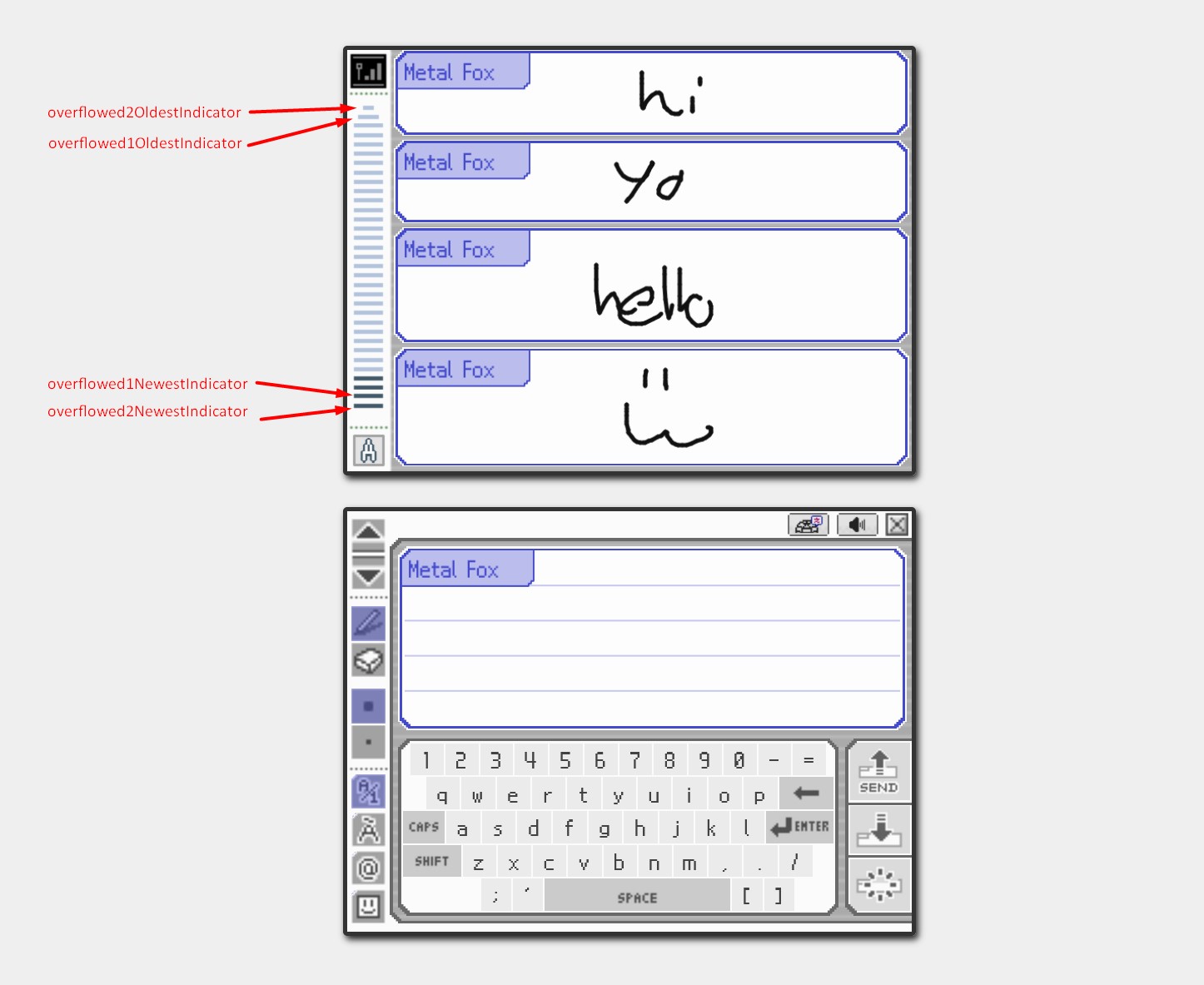
The state variables and refs will give you a clue of the kind of logic we'll perform in the component. As you can see, we're keeping track of "indicators" and dividing them into three groups: oldest indicators (at the top), middle indicators, and newest indicators (at the bottom).
import styles from 'styles/options-screen/options.module.scss'
import { useState, useEffect, useRef } from 'react'
import { RoomContent, ContentIndicators } from 'types/Room'
import { willContainerBeOverflowed } from 'helpers/helperFunctions'

const {
  content_indicator,
  skip_animation,
  indicator,
  invisible,
  overflowed_1,
  overflowed_2,
  main_container,
  indicator_container
} = styles

type AdjacentIndicators = { up: string; down: string }

type ContentIndicatorProps = {
  roomContent: RoomContent[]
  setAdjacentMessages: (adjacentIndicatorsData: AdjacentIndicators) => void
}

const ContentIndicator = ({ roomContent, setAdjacentMessages }: ContentIndicatorProps) => {
  const indicatorIdPrefix = 'i-'
  const [indicators, setIndicators] = useState<ContentIndicators>({})
  const [latestOverflowedLength, setLatestOverflowedLength] = useState(0)

  const [overflowed2OldestIndicator, setOverflowed2OldestIndicator] = useState('')
  const [overflowed1OldestIndicator, setOverflowed1OldestIndicator] = useState('')
  const [overflowed1NewestIndicator, setOverflowed1NewestIndicator] = useState('')
  const [overflowed2NewestIndicator, setOverflowed2NewestIndicator] = useState('')
  const [finishedFirstRender, setFinishedFirstRender] = useState(false)

  const prevFirstKeyRef = useRef<string | null>(null)

  const middleIndicatorsRef = useRef<HTMLDivElement>(null)
  const indicatorsContainerRef = useRef<HTMLDivElement>(null)
  const indicatorsRef = useRef<ContentIndicators>(undefined)
  indicatorsRef.current = indicators
  let observer: IntersectionObserver | null = null

  const oldestIndicators = [overflowed2OldestIndicator, overflowed1OldestIndicator]
  const newestIndicators = [overflowed1NewestIndicator, overflowed2NewestIndicator]

  const middleIndicatorKeys = Object.keys(indicators)
    .filter((key) => !oldestIndicators.includes(key) && !newestIndicators.includes(key))
    .sort((a, b) => {
      const aItem: RoomContent | undefined = roomContent.find((item) => item.id === a)
      const bItem: RoomContent | undefined = roomContent.find((item) => item.id === b)

      if (!aItem) return -1
      if (!bItem) return 1

      return aItem.serverTs - bItem.serverTs
    })
There's also a curious pattern here that might have caught your attention: we're creating a ref and assigning it to the value of a state variable, why?
const [indicators, setIndicators] = useState<ContentIndicators>({})
const indicatorsRef = useRef<ContentIndicators>(undefined)
indicatorsRef.current = indicators
If we're already storing the value in indicators , a ref pointing to it is only redundant, right? Not really, the ref will allow us to access the most up to date value in closures (e.g. callbacks) without having to re-render.
This is extemely important in our case since IntersectionObserver takes in a callback when instantiated, but it'll fire many times when scrolling through the messages. By using the ref's value inside the callback, we can be sure we're always reading the most up to date value.
2. The setupObserver method: watching visibility changes in messages
This method is in charge of instantiating a new IntersectionObserver and looping through all room messages to observe the div element representing each one.
const setupObserver = () => {
  observer = new IntersectionObserver(
    (entries) => {
      let newIndicators = { ...indicatorsRef.current }
      const newIndKeys = Object.keys(newIndicators)
      let latestVisibleId = ''

      const contentIds = roomContent.map((item) => item.id)

      for (const key of newIndKeys) {
        if (!contentIds.includes(key)) {
          delete newIndicators[key]
        }
      }

      for (const entry of entries) {
        const { id } = entry.target

        if (entry.intersectionRatio >= 0.4) {
          if (!newIndicators[id]) {
            newIndicators[id] = { isVisible: true }
          } else {
            newIndicators[id].isVisible = true
            latestVisibleId = id

            if (
              newIndicators[id].isOverflowedIndicator1 ||
              newIndicators[id].isOverflowedIndicator2
            ) {
              // This if statement handles an edge case: When scrolling too fast in mobile devices, the
              // overflowed 2 oldest indicator would be evaluated here, but the overflowed 1 oldest would be skipped.
              if (newIndKeys[0] === id) {
                newIndicators = handleOverflowedIndicatorView(newIndKeys[1], newIndicators)
              }

              newIndicators = handleOverflowedIndicatorView(id, newIndicators)
            }
          }
        } else {
          if (!newIndicators[id]) {
            newIndicators[id] = { isVisible: false }
          } else {
            newIndicators[id].isVisible = false
          }
        }
      }

      if (overflowed2OldestIndicator && latestVisibleId) {
        scrollMiddleIndicatorForVisibility(latestVisibleId)
      }

      if (willContainerBeOverflowed(indicatorsContainerRef.current!, 10)) {
        newIndicators = handleOverflowedContainer(newIndicators)
      }

      setIndicators(newIndicators)
    },
    { threshold: [0.4] }
  )

  roomContent.map((item) => {
    const el = document.getElementById(item.id)
    if (el && observer) observer.observe(el)
  })
}
We're passing a callback that will be executed every time the visibility of one of the observed elements changes, and an option called threshold that indicates what percentage of visibility counts to trigger this callback. It can be a number or an array of numbers from 0 to 1, in this case I thought a message that's at least 40% visible should count as "visible on screen", so I went with 0.4. Note that they fire in both directions, so both when going above and below 40%.
Inside the callback, we make sure to remove any indicators that do not have a corresponding message (e.g. the message was deleted to make room for new ones in an online room), and then loop through all entries provided by the observer.
The entries represent the observed elements that crossed the threshold, so it'll usually be an array of one or two items per callback, our goal here is to update the indicators object, see the ContentIndicators type for reference:
type ContentIndicators = {
  [key: string]: {
    isVisible: boolean
    isOverflowedIndicator1?: boolean
    isOverflowedIndicator2?: boolean
  }
}
We do this by checking the intersectionRatio property of the entry, another number from 0 to 1. If it's greater than or equal to 0.4, we consider that it's visible. Besides setting isVisible to true or false, we also call other methods in the callback when certain conditions are true, let's check them out one by one.
3. handleOverflowedContainer: assigning the oldest and newest indicators
In the Intersection callback we check if the indicators container will be overflowed, and transform the new indicators in that case by calling handleOverflowedContainer:
if (willContainerBeOverflowed(indicatorsContainerRef.current!, 10)) {
  newIndicators = handleOverflowedContainer(newIndicators)
}
If you're curious about the logic of the helper function that checks this, here it is:
// helperFunctions.ts
const willContainerBeOverflowed = (
  container: HTMLDivElement,
  containerHeightOffset: number = 0,
  childrenMargin?: number,
  newItemHeight?: number
) => {
  if (!container) return false
  const children = Array.from(container.children)

  let baseHeight = 0
  if (newItemHeight) baseHeight = newItemHeight
  else baseHeight = children[0] ? children[0].clientHeight : 0

  let childMargin = 0
  if (childrenMargin) childMargin = childrenMargin
  else childMargin = children[0] ? children[0].clientHeight + 1 : 0

  const computedStyle = getComputedStyle(container)
  const containerHeight =
    container.clientHeight -
    (parseFloat(computedStyle.paddingTop) + parseFloat(computedStyle.paddingBottom)) -
    containerHeightOffset

  const childrenHeight = children.reduce(
    (count, child) => count + child.clientHeight + childMargin,
    baseHeight
  )

  return childrenHeight > containerHeight
}
Now onto the meat and potatoes:
const handleOverflowedContainer = (indicatorsToHandle: ContentIndicators) => {
  const indicators = { ...indicatorsToHandle }
  const indicatorKeys = Object.keys(indicators)

  const oldestKeyChanged = prevFirstKeyRef.current && prevFirstKeyRef.current !== indicatorKeys[0]
  prevFirstKeyRef.current = indicatorKeys[0]

  // If a new item has not been added/changed after the first render completed, return.
  // We might overflow without reaching the threshold to delete the oldest messages,
  // so that's why we also need to check for latestOverflowedLength.
  if (
    latestOverflowedLength &&
    indicatorKeys.length === latestOverflowedLength &&
    finishedFirstRender &&
    !oldestKeyChanged
  ) {
    return indicators
  }

  const mustAssignOverflowed1ToOldestIndicator = !overflowed1OldestIndicator

  const mustAssignOverflowed2ToOldestIndicator =
    overflowed1OldestIndicator && !overflowed2OldestIndicator

  const mustReassignIndicators = overflowed2NewestIndicator

  if (mustAssignOverflowed1ToOldestIndicator) {
    indicators[indicatorKeys[0]].isOverflowedIndicator1 = true
    setLatestOverflowedLength(indicatorKeys.length)
    setOverflowed1OldestIndicator(indicatorKeys[0])
    setOverflowed1NewestIndicator(indicatorKeys[indicatorKeys.length - 1])
  }

  if (mustAssignOverflowed2ToOldestIndicator) {
    indicators[indicatorKeys[0]].isOverflowedIndicator1 = false
    indicators[indicatorKeys[0]].isOverflowedIndicator2 = true
    indicators[indicatorKeys[1]].isOverflowedIndicator1 = true
    setLatestOverflowedLength(indicatorKeys.length)
    setOverflowed2OldestIndicator(indicatorKeys[0])
    setOverflowed1OldestIndicator(indicatorKeys[1])
    setOverflowed1NewestIndicator(indicatorKeys[indicatorKeys.length - 2])
    setOverflowed2NewestIndicator(indicatorKeys[indicatorKeys.length - 1])
  }

  if (mustReassignIndicators) {
    setLatestOverflowedLength(indicatorKeys.length)

    setOverflowed2OldestIndicator(indicatorKeys[0])
    setOverflowed1OldestIndicator(indicatorKeys[1])
    setOverflowed1NewestIndicator(indicatorKeys[indicatorKeys.length - 2])
    setOverflowed2NewestIndicator(indicatorKeys[indicatorKeys.length - 1])

    indicators[indicatorKeys[indicatorKeys.length - 3]].isOverflowedIndicator1 = false
    indicators[indicatorKeys[indicatorKeys.length - 2]].isOverflowedIndicator2 = false
    indicators[indicatorKeys[0]].isOverflowedIndicator2 = true
    indicators[indicatorKeys[1]].isOverflowedIndicator1 = true
  }

  return indicators
}
The purpose of handleOverflowedContainer is:
- To set
overflowed1OldestIndicatorandoverflowed1NewestIndicatorthe first time the container is overflown due to a new item being added to it. - To set
overflowed2OldestIndicatorandoverflowed2NewestIndicatorthe second time the container is overflown due to a new item being added to it, at this point the "overflowed 1" variables already exist. - To reassign all "overflowed" variables as new items are added onto the indicators.
4. handleOverflowedIndicatorView: implementing custom styles as we scroll
Now that we have the four "overflow" variables ready to play with, we can react every time we scroll to one of them to apply styles to the others. handleOverflowedIndicatorView is called inside the Intersection's observer when the entry is an overflowed indicator 1 or 2:
         for (const entry of entries) {
          const { id } = entry.target

          if (entry.intersectionRatio >= 0.4) {
            if (!newIndicators[id]) {
              newIndicators[id] = { isVisible: true }
            } else {
              newIndicators[id].isVisible = true
              latestVisibleId = id

              if (
                newIndicators[id].isOverflowedIndicator1 ||
                newIndicators[id].isOverflowedIndicator2
              ) {
                // This if statement handles an edge case: When scrolling too fast in mobile devices, the
                // overflowed 2 oldest indicator would be evaluated here, but the overflowed 1 oldest would be skipped.
                if (newIndKeys[0] === id) {
                  newIndicators = handleOverflowedIndicatorView(newIndKeys[1], newIndicators)
                }

                newIndicators = handleOverflowedIndicatorView(id, newIndicators)
              }
            }
          } else {
          ...
This is the function that really takes the original logic seen in Pictochat and brings it to life. It has a lot of assignments in 4 big if statements, but it boils down to "if you're viewing this indicator, check the others and set their overflowed property to this".
const handleOverflowedIndicatorView = (
  indicatorId: string,
  indicatorsToHandle: ContentIndicators
) => {
  const indicators = { ...indicatorsToHandle }
  const viewingOldIndicator1 = overflowed1OldestIndicator === indicatorId
  const viewingNewIndicator1 = overflowed1NewestIndicator === indicatorId
  const viewingOldIndicator2 = overflowed2OldestIndicator === indicatorId
  const viewingNewIndicator2 = overflowed2NewestIndicator === indicatorId
  indicators[indicatorId] = { isVisible: true }

  if (viewingOldIndicator1) {
    if (indicators[overflowed2NewestIndicator]) {
      indicators[overflowed2OldestIndicator].isOverflowedIndicator1 = true
      indicators[overflowed2OldestIndicator].isOverflowedIndicator2 = false

      indicators[overflowed2NewestIndicator].isOverflowedIndicator1 = true
      indicators[overflowed1NewestIndicator].isOverflowedIndicator1 = false
    } else {
      indicators[overflowed1NewestIndicator].isOverflowedIndicator1 = true
    }
  }

  if (viewingNewIndicator1 && indicators[overflowed1OldestIndicator]) {
    if (indicators[overflowed2OldestIndicator] && indicators[overflowed2NewestIndicator]) {
      indicators[overflowed2NewestIndicator].isOverflowedIndicator2 = false
      indicators[overflowed2NewestIndicator].isOverflowedIndicator1 = true

      indicators[overflowed1OldestIndicator].isOverflowedIndicator1 = false
      indicators[overflowed2OldestIndicator].isOverflowedIndicator1 = true
    } else {
      indicators[overflowed1OldestIndicator].isOverflowedIndicator1 = true
    }
  }

  if (
    viewingNewIndicator2 &&
    indicators[overflowed1OldestIndicator] &&
    indicators[overflowed2OldestIndicator]
  ) {
    indicators[overflowed1OldestIndicator].isOverflowedIndicator1 = true
    indicators[overflowed2OldestIndicator].isOverflowedIndicator1 = false
    indicators[overflowed2OldestIndicator].isOverflowedIndicator2 = true
  }

  if (
    viewingOldIndicator2 &&
    indicators[overflowed1NewestIndicator] &&
    indicators[overflowed2NewestIndicator]
  ) {
    indicators[overflowed1NewestIndicator].isOverflowedIndicator1 = true
    indicators[overflowed2NewestIndicator].isOverflowedIndicator1 = false
    indicators[overflowed2NewestIndicator].isOverflowedIndicator2 = true
  }

  return indicators
}
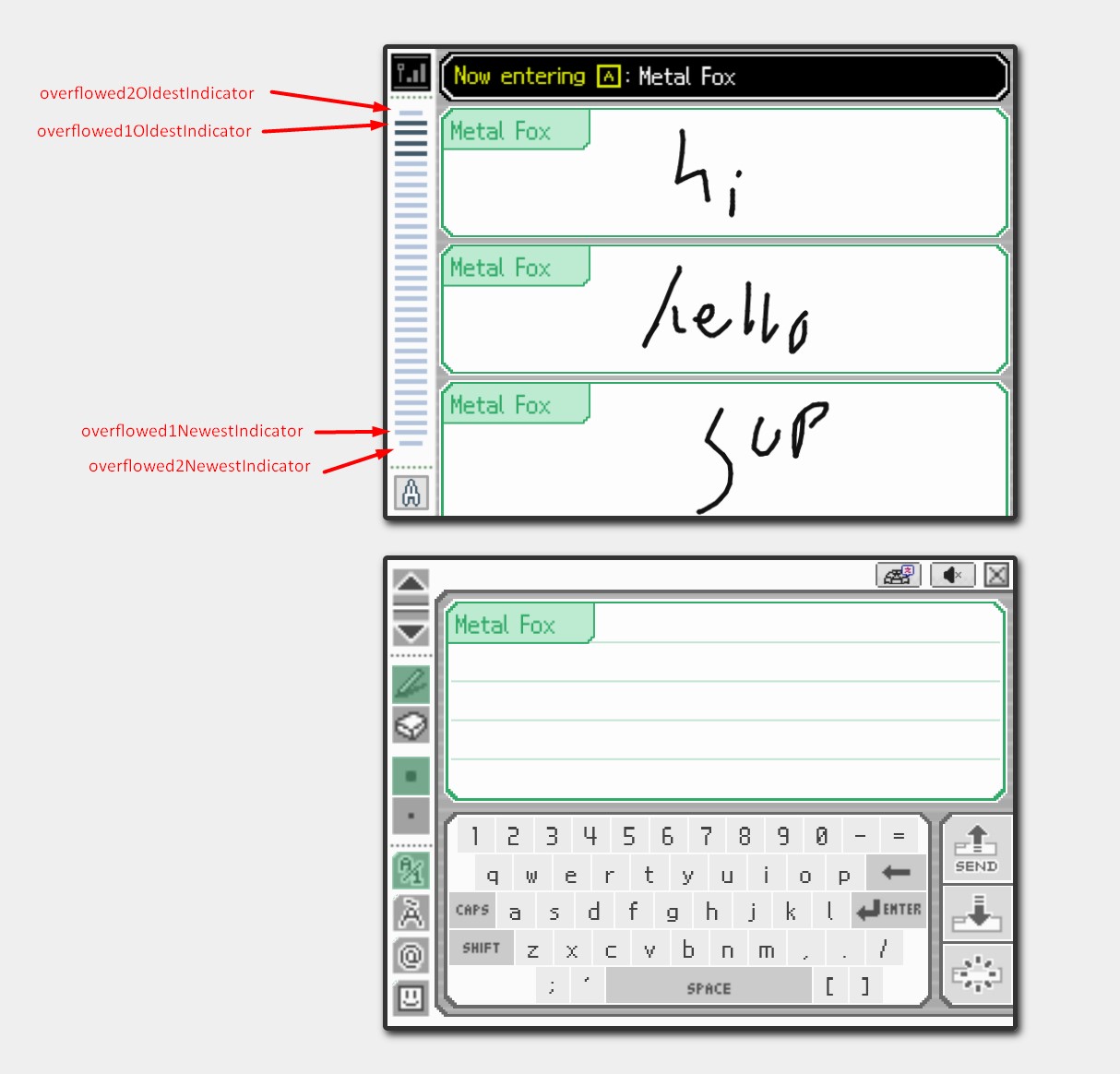
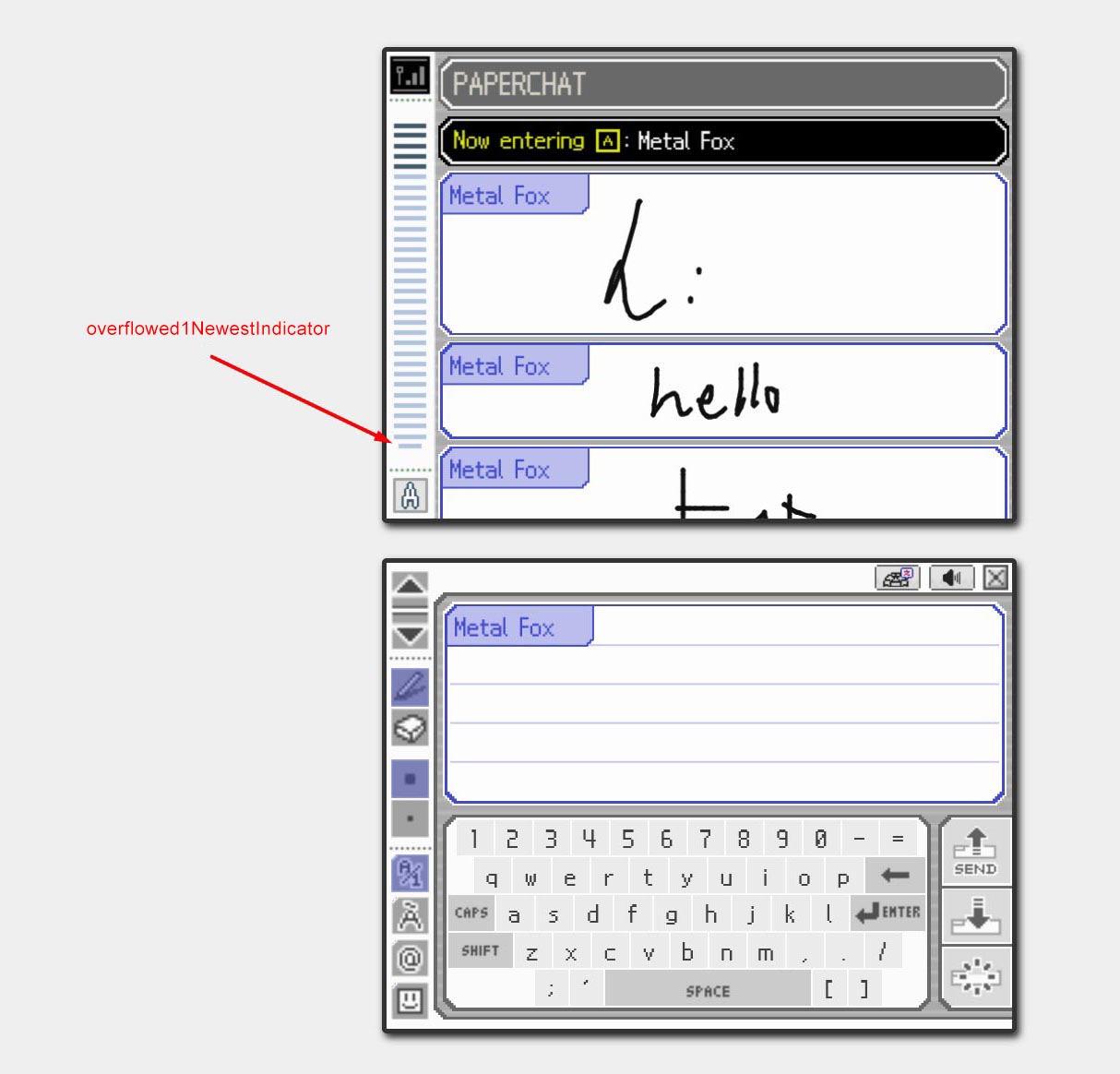
For example, check out the following screenshots for the following if/else statement:
if (viewingOldIndicator1) {
  if (indicators[overflowed2NewestIndicator]) {
    indicators[overflowed2OldestIndicator].isOverflowedIndicator1 = true
    indicators[overflowed2OldestIndicator].isOverflowedIndicator2 = false

    indicators[overflowed2NewestIndicator].isOverflowedIndicator1 = true
    indicators[overflowed1NewestIndicator].isOverflowedIndicator1 = false
  } else {
    indicators[overflowed1NewestIndicator].isOverflowedIndicator1 = true
  }
}
If case:
else case:
5. The useEffects: setup the observer every time
We're out of the woods now, we've reached the useEffects:
useEffect(() => {
  setupObserver()

  return () => {
    observer?.disconnect()
    observer = null
  }
}, [
  roomContent,
  overflowed1OldestIndicator,
  overflowed1NewestIndicator,
  overflowed2OldestIndicator,
  overflowed2NewestIndicator
])

// finishedFirstRender will be used to check for overflowed indicators when joining a room
// that potentially has many messages. Here we consider that the first scroll ends in up to 500ms.
useEffect(() => {
  if (roomContent.length > 2) {
    setTimeout(() => {
      setFinishedFirstRender(true)
    }, 500)
  }
}, [roomContent])

useEffect(() => {
  const adjacentIndicators = { up: '', down: '' }
  const indKeys = Object.keys(indicators)
  const visibleIndicators = indKeys.filter((key) => indicators[key].isVisible)

  const firstVisibleIndicatorIndex = indKeys.indexOf(visibleIndicators[0])
  const lastVisibleIndicatorIndex = indKeys.indexOf(visibleIndicators[visibleIndicators.length - 1])

  if (firstVisibleIndicatorIndex !== -1 && firstVisibleIndicatorIndex > 0) {
    adjacentIndicators.up = indKeys[firstVisibleIndicatorIndex - 1]
  }
  if (lastVisibleIndicatorIndex !== -1 && lastVisibleIndicatorIndex !== indKeys.length - 1) {
    adjacentIndicators.down = indKeys[lastVisibleIndicatorIndex + 1]
  }

  setAdjacentMessages(adjacentIndicators)
}, [indicators])
Let's go over each one:
- First useEffect: this is the most important one, it sets the
IntersectionObserverevery time new messages are received (roomContent) and every time the "overflow" indicator variables are set. - Second useEffect: this one marks the component as "loaded" by setting
setFinishedFirstRenderto true after 500ms in order to avoid executing the logic ofhandleOverflowedContainerwhen entering rooms that potentially have many messages already. - Third useEffect: this is a secondary mission of the component, to keep its parent (the room) posted on what the following message's id is, both top and bottom. This is executed every time a scroll is triggered because the IntersectionObserver callback also sets indicators, the object we set for our parent takes the following shape:
{ up: "1768158327682-695", down: "1768158336376-987" }Knowing this, the room can use the bottom screen's arrows to scroll to the next or the previous message. We'll visit that logic in the Chat Room dev blog.
6. The small details matter: scrolling the middle container
Following the useEffects we find a couple of smaller methods, one of which is called in the IntersectionObserver callback.
const isIndicatorOverflowed = (indicator: Element) => {
  const contRect = middleIndicatorsRef.current!.getBoundingClientRect()
  const indRect = indicator.getBoundingClientRect()

  const overFlowedToTheBottom = indRect.bottom > contRect.bottom
  const overFlowedToTheTop = contRect.top > indRect.top
  return overFlowedToTheBottom || overFlowedToTheTop
}

const scrollMiddleIndicatorForVisibility = (latestVisibleId: string) => {
  const item = document.getElementById(indicatorIdPrefix + latestVisibleId)
  if (item && isIndicatorOverflowed(item)) {
    item.scrollIntoView({ behavior: 'auto', block: 'nearest' })
  }
}
observer = new IntersectionObserver(
(entries) => {
...
if (overflowed2OldestIndicator && latestVisibleId) {
scrollMiddleIndicatorForVisibility(latestVisibleId)
}
...
Remember that the middle indicators have their own container with overflow: hidden to ensure there's enough space for the old indicators on top and the new ones at the bottom. This means that as the number of messages grows, the middle indicators will stay hidden unless we scroll the list programatically, which is what we're doing here.
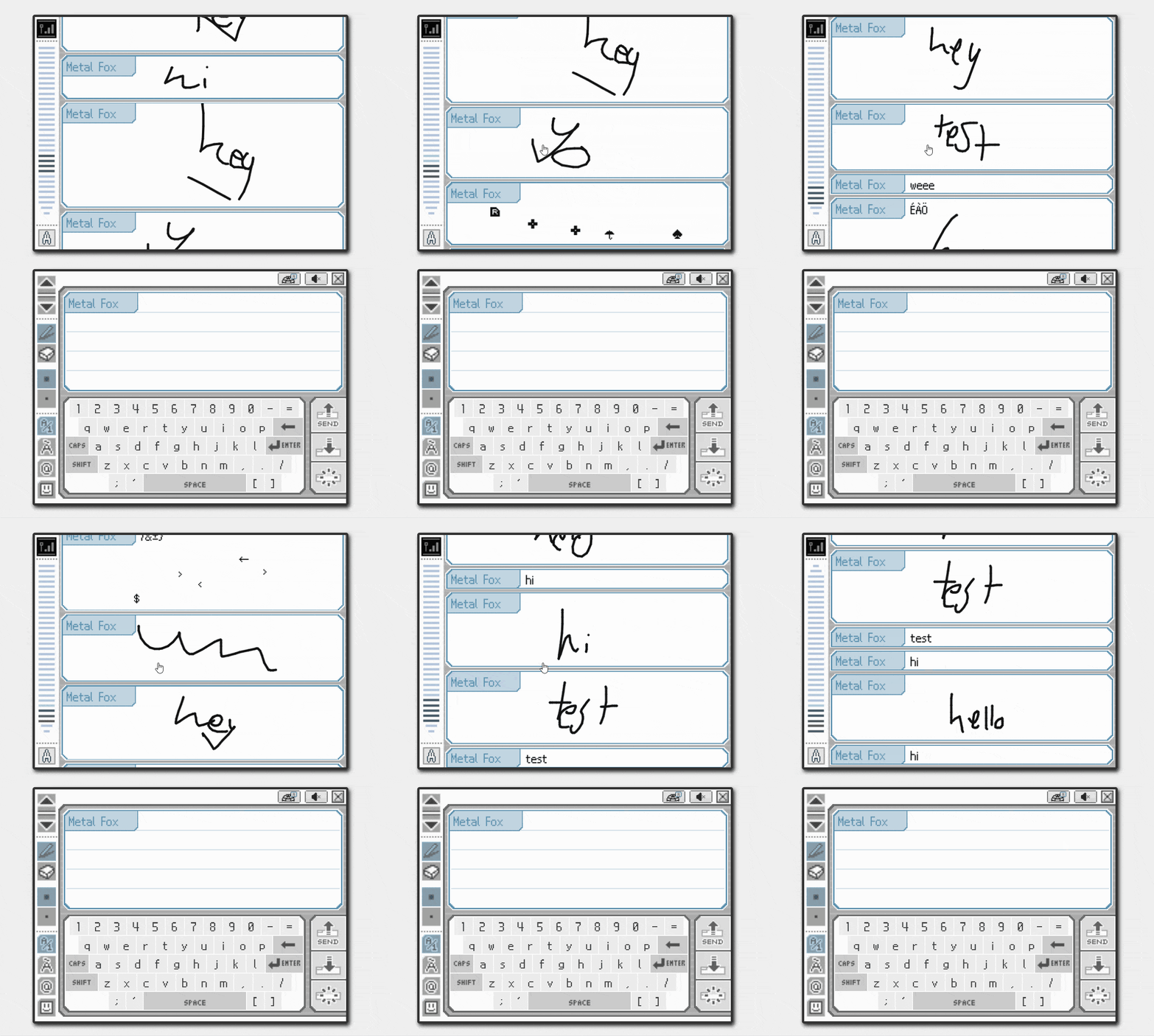
Notice how when we reach the bottom, we don't immediately go into the newest indicators, the list scrolls a bit more before getting there:
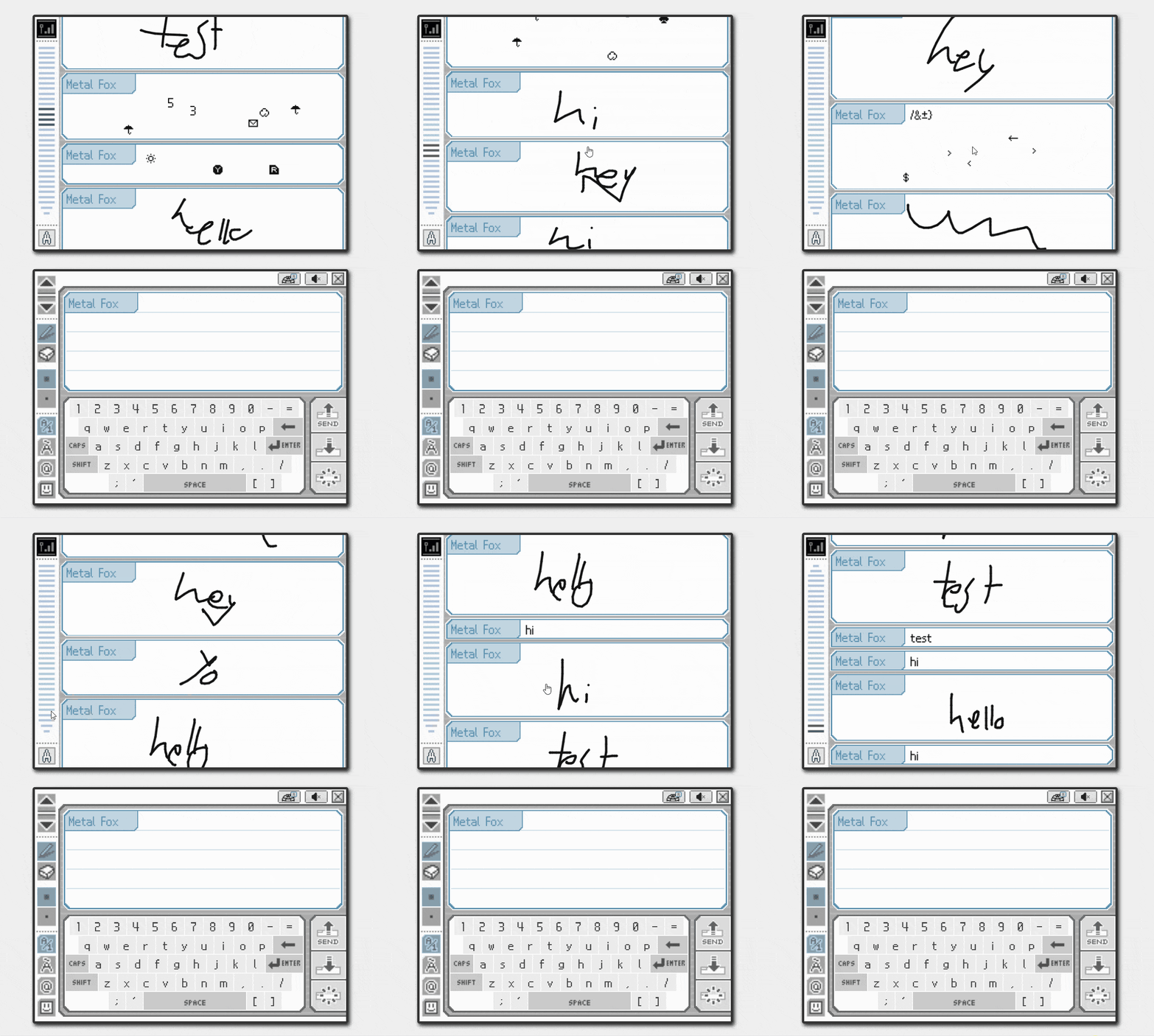
This is how it would look like if we didn't call that method:
By the way, if you're wondering why the indicators scroll all the way to the bottom every time a new message is received, that's because we trigger a scroll of the messages container in the room component (public/private/offline rooms).
7. Rendering the indicators and returning the final JSX
Finally, the method that renders indicators assigns different classes using the properties from each indicator object, being especially relevant isOverflowedIndicator1 and isOverflowedIndicator2. The structure of the returned JSX is also very simple, complexity lies behind.
const renderIndicators = (indicatorKeys: string[]) => {
    return indicatorKeys.map((id) => {
      const ind = indicators[id]
      if (!ind) return ''

      return (
        <div
          key={id}
          id={indicatorIdPrefix + id}
          className={`${indicator} ${id.includes('paperchat_octagon') ? skip_animation : ''} ${
            ind.isVisible ? '' : invisible
          } ${ind.isOverflowedIndicator1 && !ind.isVisible ? overflowed_1 : ''} ${
            ind.isOverflowedIndicator2 && !ind.isVisible ? overflowed_2 : ''
          }`}
        ></div>
      )
    })
  }

  return (
    <div className={content_indicator} ref={indicatorsContainerRef}>
      <div className={indicator_container}> {renderIndicators(oldestIndicators)}</div>
      <div
        ref={middleIndicatorsRef}
        className={`${indicator_container} ${overflowed2OldestIndicator ? main_container : ''}`}
      >
        {renderIndicators(middleIndicatorKeys)}
      </div>
      <div className={indicator_container}> {renderIndicators(newestIndicators)}</div>
    </div>
  )
}

export default ContentIndicator
And that's it, our very specific IntersectionObserver with React is done! It's an extremely specific ad-hoc behavior that isn't something you'd find very often. Honestly, what were they thinking in Nintendo when they made this? Regardless, it's beautiful and fits the app perfectly.
See you next time!